
Report Phishing in Outlook: Report Button Guide (2026)
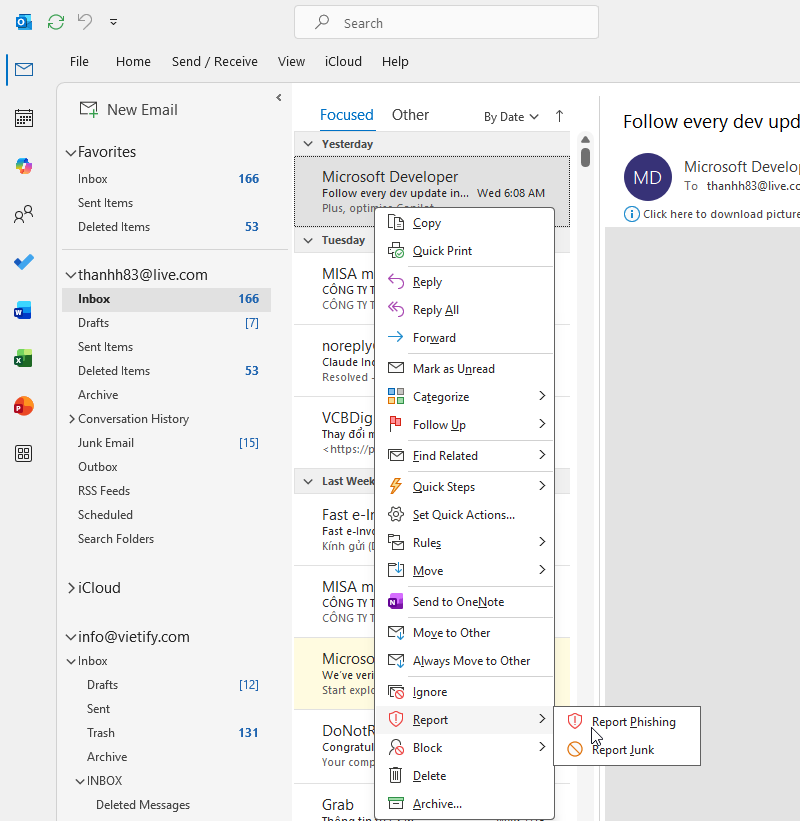 Select the suspicious message, choose Report, then Report phishing. A fast report lets IT find identical messages in other mailboxes.
Quick answer: in Outlook, select the suspicious email, click Report, then choose Report phishing. Do not click its links, open its attachments or reply. If you cannot see a Report button, the likely reason is that your organisation has not turned user reporting on. You have not done anything wrong. In that case, send the message to IT the way described under No Report button below. If you already clicked a link or typed a password, tell IT straight away, before doing anything else.
This guide is based on Microsoft's and Google's official documentation (sources and the date we checked them are at the bottom). It answers questions people actually typed into Google and Bing about this topic, such as "report phishing outlook", "report phishing to outlook" and "microsoft office report phishing". It has two parts: one for users and one for IT administrators.
Where is the Report button, and which Outlook versions have it?
Microsoft ships a built-in Report button in supported versions of Outlook. According to Microsoft's documentation (page last updated 3 July 2026), these versions are supported:
| Outlook app | Version required |
|---|---|
| New Outlook for Windows | supported |
| Outlook on the web | supported |
| Outlook for Microsoft 365, Current Channel | 16.0.17827.15010 or later |
| Outlook for Microsoft 365, Monthly Enterprise Channel | 16.0.18025.20000 or later |
| Outlook for Microsoft 365, Semi-Annual Channel | release 2502, build 16.0.18526.20024 or later |
| Outlook for Mac | 16.89 (24090815) or later |
| Outlook for iOS | 4.2511 or later |
| Outlook for Android | 4.2446 or later |
The button appears only when both of these are true: user reporting is turned on for your organisation, and the built-in Report button is selected in the user reported settings. That is why many employees say "I don't have that button". The setting lives in the administrator's portal, not on your computer.
How to report a phishing email
- Do not click links, load remote images or open attachments.
- Select one or more messages and click Report on the toolbar.
- In the drop-down list, choose Report phishing. A phishing message can be reported from any folder.
- Outlook removes the reported message from your mailbox. That is normal: Microsoft states that messages reported as phishing are deleted.
- Tell IT through your internal channel if your company asks for it. Include the time the message arrived and what you did with it (viewed it, clicked something, or nothing).
If the message is merely unwanted bulk mail rather than a scam, choose Report junk instead. The message moves to the Junk Email folder and the sender is added to your Blocked Senders list. Note that you cannot report a message as junk from inside the Junk Email folder itself.
Reported by mistake: can you undo a phishing report?
One searcher asked how to take back a phishing report. The Microsoft page we used describes how to fix the opposite case, a good message wrongly sent to Junk: open the Junk Email folder, select the message, click Report, then Not junk. The message is moved back to the Inbox.
That page does not describe a separate undo button for a message you reported as phishing, and such messages are deleted. If you reported something important by mistake, ask IT to check the Deleted Items folder and the reported-message queue instead of trying to recover it yourself.
No Report button: what to do
The safest method does not depend on the button:
- Do not forward the email "as usual" to colleagues to ask whether it looks real. That can lead several people to click it.
- Take a screenshot showing the sender, subject and link, or let IT pull the original message. IT often needs the message header, not just the visible text. In new Outlook, select More actions at the top of the message window, then View > View message details. In classic Outlook, double-click the message, then choose File > Properties and read the Internet headers box.
- Send it to IT through your internal channel (ticket, team chat, internal mailbox) and say clearly whether you clicked anything.
- If you use Gmail or Google Workspace instead: open the message, click More next to Reply, then Report phishing. Google notes that when you manually move an email to Spam, Google receives a copy of the email and its attachments.
Report phishing to Google or to Microsoft?
The answer to "which provider do I report to?" is: the provider of the mailbox you are using, because they are the ones who can block the message on their own system.
| You use | Report with | Notes |
|---|---|---|
| Microsoft 365 / Outlook | Report > Report phishing | The report can go to your company's reporting mailbox, to Microsoft, or both. The administrator decides. |
| Gmail / Google Workspace | More > Report phishing | Use Report not phishing if a good message was flagged by mistake. |
If your company has IT support, tell IT first or at the same time. Only IT can search for and remove the same message from other people's mailboxes.
For IT administrators: turning on the Report button and handling reports
Turn it on and choose where reports go
The built-in Report button appears only when user reporting is on and the built-in button is selected in the user reported settings. Microsoft lists the settings page at https://security.microsoft.com/securitysettings/userSubmission. There you choose where reported messages are sent: a reporting mailbox in your organisation, Microsoft, or both. The exact labels of each option can change between Defender portal updates, so compare with what you see on screen rather than relying on this article.
Our own suggestion, not Microsoft's: use a dedicated mailbox that several IT staff can read as the reporting mailbox, rather than one person's inbox, so reports are not missed when that person is away. One related rule is documented, but for Teams reports only: the reporting mailbox must be an Exchange Online mailbox, and on-premises mailboxes are not supported.
Review and process reports
Sign in to the Microsoft Defender portal at https://security.microsoft.com, go to Actions & submissions > Submissions and open the User reported tab. Two things are easy to miss:
- Messages sent only to the reporting mailbox (not to Microsoft) appear here with the result Not Submitted to Microsoft. If you want Microsoft to analyse them, an administrator has to submit them.
- When Microsoft does receive a report, it checks email authentication, the policies that affected the message, the reputation and detonation results of links and files, and analysis by human graders. According to Microsoft, the result is usually available within several minutes, but detonation and grader feedback can take up to one day. Do not conclude "safe" after a few minutes.
Tip: reporting from a shared mailbox
In the Outlook versions that Microsoft's page marks as supporting reports from shared mailboxes or from another person's mailbox by a delegate, the delegate needs Send As permission. Without it, Microsoft says the reported message is not sent to the reporting mailbox; it is only removed from the folder. If a report seems to "vanish" and IT sees nothing, check this permission first.
Read the message header to check for spoofing
When you need to know whether a message really came from the sender it shows, open the header (steps above) and compare:
- Authentication-Results: the SPF, DKIM and DMARC results Microsoft 365 recorded when the message arrived.
- X-Forefront-Antispam-Report, where CAT is the threat category applied, for example
PHSH(phishing),HPHSHorHPHISH(high-confidence phishing) andSPOOF(spoofing). - The
Fromaddress against the real sending address. Microsoft notes that checking the header lets you find out whether the email address is different from how it appears.
Microsoft provides a Message Header Analyzer tool: paste in the header and it parses it into a more readable format. One important caution: a message that passes SPF, DKIM and DMARC is not automatically safe. An attacker can send from a lookalike domain they registered legitimately. Those checks answer "did this come from the domain it claims?", not "can I trust it?".
When a user clicked a link or entered a password
This list is general account-security practice, not a quotation from Microsoft's documentation. Work through it in order:
- Reset the account password and revoke active sessions (sign out everywhere).
- Check for new forwarding rules and inbox rules. Attackers often add hidden ones.
- Review the account's sign-in history for unusual locations or devices.
- Turn on MFA if it is not already on. See MFA and passkeys for small businesses.
- Find out who else received the same message and remove it from their mailboxes.
If the account is already taken over, follow the dedicated guide: hacked company email, 7 recovery steps.
Frequently asked questions
Why can't I see the Report button?
Either your Outlook version is older than the ones in the table above, or your administrator has not turned on user reporting and selected the built-in button. Check your version first; if it is current, ask IT.
Where does my report go?
That is an administrator setting: a reporting mailbox in your company, Microsoft, or both. Ask IT which one your company chose.
I use Gmail. What do I do?
Open the message, click More next to Reply, and choose Report phishing. If a good message was flagged by mistake, use Report not phishing.
Is the sender's address enough to tell whether an email is real?
No. Google's guidance is to check that the sender name and address match, hover over links to see whether the URL matches the link text, and remember that Google does not ask for your account password by email when you are signed in. For deeper checks IT can read the message header.
Sources and date checked
The steps and behaviours in this article come from official documentation, checked on 15 October 2026. If the interface or version numbers have since changed, the original page is the authority:
- Microsoft Learn: Report phishing and suspicious emails in Outlook for admins (Microsoft Defender for Office 365), page updated 3 July 2026.
- Microsoft Learn: Submit messages, URLs, and attachments for analysis in the Microsoft Defender portal.
- Microsoft Learn: Anti-spam message headers in cloud organizations, page updated 27 July 2026.
- Microsoft Learn: User reported settings in Microsoft Teams (the Exchange Online reporting-mailbox rule).
- Microsoft Support: View internet message headers in Outlook.
- Google Help: Avoid & report phishing emails (Gmail Help).
Not verified in this article: we do not name any Vietnamese government reporting channel because we could not open the official sites when we checked. Use the channel published by the relevant authority or your bank. The five-step checklist for a user who clicked or typed a password, the advice not to forward a suspect message to colleagues, taking a screenshot, the statement that only IT can search other mailboxes, the advice to ask IT to check Deleted Items and the suggestion to use a shared reporting mailbox are general good practice, not quotations from Microsoft.
Next step
If you need an internal reporting process, want the Report button turned on for your whole company, or need help reading message headers, contact Vietify or request a free IT assessment. See also our IT security service and Microsoft 365 for business.
Vietify IT Services — email security and Microsoft 365 support for businesses in Da Nang. Updated: 15 October 2026.
Chia sẻ bài viết
Cần tư vấn IT cho doanh nghiệp?
Vietify IT cung cấp Managed IT từ 4.990.000đ/tháng. Phản hồi trong 30 phút.
Bình luận
Đang tải bình luận…
Để lại bình luận
Cập nhật: 15/10/2026