
Restore Deleted OneDrive Files for Work (2026 Guide)
 Deleted, overwritten or gone after a leaver? Each case has a different place to look, and a different deadline.
Quick answer: a file that disappeared from OneDrive for work or school is usually still recoverable. Look in the recycle bin first. Microsoft says items in SharePoint in Microsoft 365 are retained for 93 days from the moment you delete them from their original location. If the file is still there but its content is wrong, use version history. If many files were changed or deleted at once, for example by a mass deletion or a bad sync, use Restore your OneDrive, which Microsoft's Learn documentation describes as restoring OneDrive to any point within the past 30 days. Stop editing the affected folder while you check, and tell IT before several people start "fixing" things.
This guide uses Microsoft's own documentation (sources and the date we checked them are at the end). It answers questions people actually typed into Google and Bing about this problem. They are mostly Vietnamese: "khôi phục file đã xóa trên onedrive" (restore a file deleted on OneDrive), "cách nào để lấy lại file đã xóa trên onedrive cty" (how to get back a file deleted on the company OneDrive), "không khôi phục được onedrive" (cannot restore OneDrive) and "công cụ nào hỗ trợ khôi phục file đã xoá onedrive nhanh" (which tool restores a deleted OneDrive file quickly). Each is typed only 1 to 2 times in the export we used, so this is a long-tail topic, not a high-volume one.
Which tool for which problem?
| What happened | Where to look first | Time limit stated by Microsoft |
|---|---|---|
| One file or folder was deleted | The OneDrive recycle bin | 93 days from deletion (SharePoint in Microsoft 365) |
| The file is there but the content is wrong or overwritten | Version history on that file | Depends on the library's versioning settings |
| Many files were deleted or changed at once | Restore your OneDrive | Any point within the past 30 days |
| The recycle bin does not show it | The second-stage (site collection) recycle bin, via a site admin | Remainder of the 93 days |
| A former employee's OneDrive | Admin restore of the user or the OneDrive | 30 days by default, then 93 days in a deleted state |
| You need an older state than any of the above | A backup product | Depends on the product |
The first four rows are tools built into Microsoft 365 (we did not check whether each one is available in every plan). The last two are about administrators and backups, covered later in this guide.
Before you restore anything: slow down
This part is our own advice, not a quotation from Microsoft. When a file vanishes from a shared OneDrive, the instinct is to re-create it, re-upload an old copy or ask colleagues to send theirs. Each of those adds new versions and new copies, which makes it harder to tell later which one is right. A short checklist:
- Write down what you know: the file name, the folder, roughly when you last saw it, and who else uses that folder.
- Ask others to stop editing in that folder until you have looked, especially for contracts, accounting files and customer data.
- Do not overwrite from an unverified local copy. If your computer syncs OneDrive, a local copy can be older than the cloud copy.
- Tell IT if the data is sensitive or if the loss involved many files, so someone can check permissions and unusual activity.
If the problem looks like a sync fault rather than a deletion, see OneDrive not syncing: common errors and safe fixes first.
Step 1: check the recycle bin
When you delete a file from OneDrive, it does not vanish immediately. Microsoft explains that items deleted from a SharePoint site, including OneDrive files, go first to the site recycle bin, also called the first-stage recycle bin. When someone deletes an item from there, it moves to the site collection recycle bin, also called the second-stage recycle bin. Microsoft's support page adds that its recycle-bin article also applies to OneDrive for work or school files.
Key facts from Microsoft's documentation:
- Items are retained for 93 days from the time you delete them from their original location. They stay in the first-stage recycle bin the whole time unless someone deletes them from there or empties it. Then they go to the second-stage bin for the rest of the 93 days.
- The second-stage bin can purge early. Microsoft lists two cases: the site collection recycle bin exceeds its quota and starts purging the oldest items, or a site collection administrator manually deletes the item.
- If an item is deleted from the second-stage bin, or exceeds the retention time, it is permanently deleted.
- A restored item goes back to the same location it was deleted from. If a file or folder already exists at that path, the item is restored with a number appended to the end of the file name.
- If you restore a file that has several versions, the restored file includes all the versions it had when it was deleted.
- You can restore items that other people deleted, as long as you have edit permissions.
How to restore from the recycle bin
Microsoft's SharePoint recycle-bin article, which it says also applies to OneDrive for work or school files, gives these steps for a site recycle bin: on the Recycle bin page, click the box to the left of the items or files you want to restore, then click Restore. For the second-stage bin, Microsoft says you need administrator or owner permissions, and describes it as reached from the bottom of the Recycle Bin page by selecting second-stage recycle bin. We have not verified the exact menu names for opening the recycle bin in the OneDrive web app itself, because the part of Microsoft's page that lists them did not load fully. Use the Recycle bin entry in OneDrive on the web and compare with Microsoft's current page.
On the OneDrive mobile apps, Microsoft's steps are: tap Me, select the account, tap Recycle Bin, select the files, then tap Restore.
Two more places to check, both from Microsoft's documentation:
- The Windows Recycle Bin on your PC. Microsoft notes that the SharePoint recycle bin is different from the Windows one, and that if you delete files or folders that you are syncing, you can restore them from the Windows Recycle Bin.
- The folder's container. If you delete a file and then delete the library or folder it was in, you must restore the library first, then the file. If the file was deleted from a folder that is itself gone, Microsoft says the folder is re-created, but only with the item you restored.
Step 2: the file is there but the content is wrong (version history)
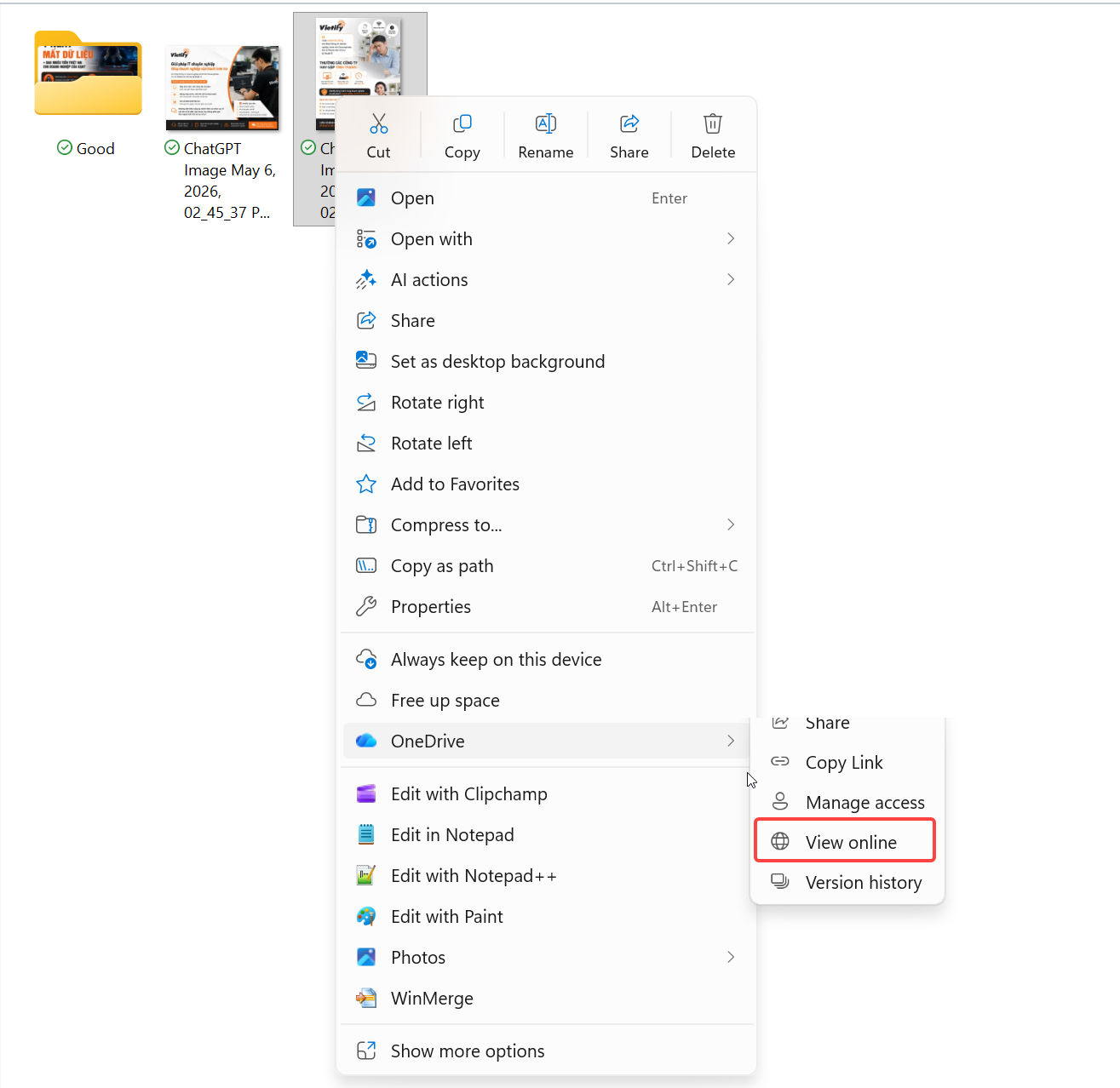
If the file still exists but someone overwrote it, saved over good content or corrupted it, use version history instead of the recycle bin. Microsoft's steps for OneDrive on the web: select the file you want to restore (you can only restore one file at a time), right-click, then select Version history. In the Version History pane, select the ellipsis (...) next to the version you want and click Restore.
If the OneDrive sync app is installed on your PC, Microsoft says you can do the same in File Explorer: right-click the file, select Version history, select the ellipsis next to the version, and click Restore.
What happens next, in Microsoft's words: the version you selected becomes the current version, and the previous current version becomes the previous version in the list. So restoring does not destroy the version you replaced. That is why it is worth opening the version list and comparing timestamps and editors before you pick one.
Two limits to know:
- Version history needs the file to exist. Microsoft states that when you delete a file you delete all of its versions, so you cannot restore a version of a file that has itself been deleted. Restore the file from the recycle bin first.
- How many versions are kept depends on the library's versioning settings. Microsoft says SharePoint versioning settings also apply to OneDrive for work or school. We did not verify the default number of versions, so check your own library's setting rather than assuming.
Step 3: many files are wrong at once (Restore your OneDrive)
If a bad sync, an accidental mass delete or a faulty tool changed or removed many files, restoring them one by one is slow and error-prone. Microsoft's Restore your OneDrive feature restores the whole OneDrive to an earlier time. The Learn documentation describes it as restoring OneDrive to any point within the past 30 days.
What Microsoft's support page says about how it works:
- You pick the activities in the activity feed that you want to undo. When you are ready, select Restore. Microsoft says this undoes all the activities you selected, and your OneDrive files are restored to the state before the first activity you selected.
- Files or folders created after the restore point are sent to your OneDrive recycle bin.
- If a file was permanently deleted from the OneDrive recycle bin, Microsoft says it can never be recovered.
- If you change your mind, you can undo a restore by running Restore again and selecting the restore action you just did.
- Albums are not restored.
Because it affects the whole OneDrive, this is a tool to use after you have checked the recycle bin and version history, and ideally after telling IT. It will also move the good files you created since the restore point into the recycle bin, so note what changed recently first.
If the recycle bin and Restore your OneDrive both fail, Microsoft documents a last resort for administrators: SharePoint Online retains backups of all content for 14 additional days beyond actual deletion, and an administrator can contact Microsoft Support to request a restore inside that window. The catch is stated plainly: restorations from backups can only be completed for site collections, not for specific files, lists or libraries.
When an employee has left: restoring a deleted user's OneDrive
This is the case where the recycle bin does not help, because the whole OneDrive belongs to an account that was deleted. Microsoft's documentation describes this timeline:
- Deleting the user starts the clock. Microsoft states that the OneDrive retention period begins when the user account is deleted from Microsoft Entra ID. It says no other action starts the cleanup, including blocking the user from signing in or removing the user's license.
- 30 days by default. The deleted user appears in the Microsoft 365 admin center for 30 days, and the default OneDrive retention period is also 30 days. An administrator can change the retention period in the SharePoint admin center.
- A manager gets access. By default the user's manager is automatically given access to the OneDrive. Microsoft also says that a user who is given access has 30 days by default to access and download the files they want to keep. Microsoft recommends also naming a secondary owner in case the user has no manager set. If access delegation is disabled or no manager or secondary owner is set, Microsoft says no one has automatic access and no one is warned that the OneDrive will be deleted.
- A reminder. Seven days before the retention period ends, a second email goes to the manager or secondary owner.
- Then 93 days in a deleted state. After the retention period, Microsoft says the OneDrive moves to the site collection recycle bin, where it is kept for 93 days. Users can no longer reach shared content in it during this time. Restoring it requires PowerShell.
What an administrator can do, according to Microsoft:
- Within 30 days of deleting the user: restore the user and all their data from the Microsoft 365 admin center.
- After 30 days: the user no longer appears in the admin center, and a SharePoint Administrator must restore the OneDrive with PowerShell. Microsoft's steps use
Get-SPODeletedSiteto check whether the OneDrive can be restored,Restore-SPODeletedSite -Identity <URL>to restore it, andSet-SPOUserto give an administrator access to the data. Microsoft recommends permanently deleting the restored OneDrive once you have recovered what you need, and warns you cannot restore it after that.
Two cautions from the same pages. Microsoft says the recycle bin is not indexed, so an eDiscovery hold cannot find content there. And retention policies and labels take precedence over the standard deletion process, so content can be deleted before 30 days or kept longer than the retention period.
A practical rule that follows from Microsoft's own warning, and is our reading rather than a quote: move or copy a leaver's files before you delete the account, and treat "remove the license" as a different action from "delete the user". Removing a license does not start the OneDrive cleanup, but Microsoft also states that OneDrive accounts without a valid license are automatically archived on their 93rd unlicensed day. Check the "OneDrive retention and deletion" page for your situation before you remove licenses in bulk.
What the built-in tools do not cover
Everything above is recovery inside Microsoft 365, with time limits: 93 days for the recycle bin, 30 days for Restore your OneDrive, and the retention period for a deleted user. If you need to go further back than that, or want a copy that does not depend on your own admins, you need a backup.
Microsoft's own backup service, Microsoft 365 Backup, is documented as able to back up all or selected SharePoint sites, OneDrive accounts and Exchange mailboxes. For OneDrive, its recovery window is configurable on a backup policy at 3 months, 6 months, 1 year or 2 years (existing policies default to 1 year). Its documented recovery points are every 10 minutes for the two weeks prior, plus weekly snapshots from 2 to 52 weeks prior. It restores a OneDrive account as a whole to an earlier point in time; Microsoft lists restoring individual files via versions as "coming soon". We did not verify pricing or which plans can buy it.
Third-party backup is the other route. This site has a separate guide on whether OneDrive counts as a backup and what a real backup needs. If your problem is sync rather than deletion, start with OneDrive not syncing: common errors and safe fixes.
A one-page recovery routine for your company
This is our suggested routine, not Microsoft's. Print it or save it with your internal procedures:
- Stop editing the affected folder. Note the file name, folder and time.
- One file deleted: recycle bin, then the second-stage bin through a site administrator.
- One file overwritten: version history. Compare timestamps and editors first.
- Many files wrong: tell IT, check the recycle bin and version history, then consider Restore your OneDrive.
- A leaver's data: check the date the user was deleted. Under 30 days, restore the user. Over 30 days, a SharePoint Administrator restores it with PowerShell.
- After recovery: write down what happened and what you changed, and review who has access to the folder.
- Every quarter: test one restore on a non-critical file, so the first time someone does this is not during an incident.
Frequently asked questions
How long are deleted OneDrive files kept?
For OneDrive for work or school, Microsoft's SharePoint documentation says items are retained for 93 days from the time you delete them from their original location. They can leave earlier if someone empties the recycle bin stages by hand or the second-stage bin runs out of quota. We did not verify the retention rules for personal Microsoft accounts, so this article does not state them.
Can I recover a file after the recycle bin is emptied?
Sometimes. If it is still inside the 93 days, a site collection administrator may find it in the second-stage recycle bin. Microsoft also says an administrator can ask Microsoft Support to restore a site collection from backups kept for 14 days after deletion, but only whole site collections, not single files.
What is the difference between the recycle bin and version history?
The recycle bin brings back a file that was deleted. Version history brings back an earlier state of a file that still exists. If the file is deleted, Microsoft says all its versions go with it, so restore the file first.
Does Restore your OneDrive delete my newer files?
Microsoft says files or folders created after the restore point are sent to your OneDrive recycle bin, so they are not lost immediately, but the restore does change what is visible. That is why we suggest telling IT first.
Is OneDrive a backup?
Not in the sense of a separate copy with a long history. Its recovery tools work inside the time limits above. See our guide on whether OneDrive is a backup.
Sources and date checked
The retention periods, steps and behaviours in this article come from Microsoft's documentation, checked on 15 October 2026. Where Microsoft changes a time limit or a menu name, the original page is the authority:
- Microsoft Learn: Restore deleted items from the site collection recycle bin (SharePoint in Microsoft 365), page updated 31 August 2026.
- Microsoft Support: Restore items in the recycle bin that were deleted from SharePoint or Teams.
- Microsoft Support: Restore a previous version of a file stored in OneDrive.
- Microsoft Support: Restore your OneDrive.
- Microsoft Support: Restore files deleted from your OneDrive (mobile app steps and Windows Recycle Bin note).
- Microsoft Learn: How SharePoint and OneDrive safeguard your data in the cloud, page updated 13 January 2025 (the 30-day Restore your OneDrive statement).
- Microsoft Learn: OneDrive retention and deletion, page updated 23 June 2026.
- Microsoft Learn: Restore a deleted OneDrive, page updated 7 February 2025.
- Microsoft Learn: Overview of Microsoft 365 Backup, page updated 18 August 2026.
Not verified in this article: the exact menu path for opening the recycle bin in the OneDrive web app; the default number of file versions kept; retention for personal Microsoft accounts; which Microsoft 365 plans include each tool; Microsoft 365 Backup pricing; and whether Restore your OneDrive appears for every work account (the support page we read mixes personal and work/school guidance). The "slow down" checklist, the leaver rule of thumb, the recovery routine and the quarterly test are our own practice, not quotations from Microsoft.
Next step
If you have just lost files and are not sure which route to take, or you want a tested recovery routine and a real backup for your company, contact Vietify or request a free IT assessment. See also our IT security service and Microsoft 365 for business.
Vietify IT Services — practical IT and Microsoft 365 support for businesses in Da Nang. Updated: 15 October 2026.
Chia sẻ bài viết
Cần tư vấn IT cho doanh nghiệp?
Vietify IT cung cấp Managed IT từ 4.990.000đ/tháng. Phản hồi trong 30 phút.
Bình luận
Đang tải bình luận…
Để lại bình luận
Cập nhật: 15/10/2026